A tested reference architecture: every question asked in an enterprise AI chat reaches Snowflake as the employee who asked it, not as a shared service account.
Code: github.com/sfc-gh-kkeller/langdock-snowflake. It has the SQL setup, audit and agent governance queries, the MCP DR sync task, OAuth test scripts, and Icedock, a small demo UI used to re-run the tests.
Personal project. Reference architecture and test notes, provided as-is. Not an official Snowflake or Langdock product, not reviewed or endorsed by either company, and not supported. Validate it in your own environment.
Executive summary#
The business problem. Employees want to ask questions of company data in the AI chat tool they already use. The quick way to connect a chat platform to a data warehouse is one technical account. That account sees everything, so the AI sees everything, and the audit trail says “the bot did it”. In a regulated firm, such as an asset manager under BaFin and DORA, that is a non-starter. Fund and department permissions disappear, and nobody can say which person saw which data.
The approach. The chat platform (here Langdock) passes each employee’s own Microsoft Entra ID identity through to Snowflake. Snowflake’s managed MCP server accepts the employee’s token, runs the Cortex Agent in that employee’s session, and applies the same row access and masking policies that apply everywhere else.
What this delivers.
- Same permissions in the AI as in the data warehouse. An analyst in Equity sees Equity funds, whether they ask in SQL, a dashboard or a chat.
- A named person behind every query. Snowflake’s query and access history record the employee, the role, the agent and the policies applied.
- No stored credentials. There is no password, key or service account for data access. Revoke the user in Entra and access stops.
- Answers for internal audit. Agent inventory, which agents read sensitive columns, usage and error rates per agent, all from Snowflake system views.
What to watch. Cortex Search does not filter per user, so split search services by access domain. Shared agents with a pre-selected connection act as their owner. MCP server objects don’t replicate with failover groups. All three are covered below, with tested workarounds.
The architecture#
 Employee
    │ 1. SSO
    ▼
 ┌──────────┐  2. OAuth per user (Auth Code + PKCE)  ┌──────────────────┐
 │ Langdock │ ─────────────────────────────────────► │ Microsoft Entra  │
 │          │ ◄───────────────────────────────────── │ ID               │
 └────┬─────┘  3. User token                         └────────┬─────────┘
      │           (scp: session:role:MCP_USER)                │ SCIM
      │ 4. MCP call, Bearer = user token                      │ users + groups
      ▼                                                       ▼
 ┌─────────────────────────── Snowflake ─────────────────────────────────┐
 │  External OAuth (Entra only) ─► session = employee + MCP_USER         │
 │        │                                                              │
 │        ▼                                                              │
 │  MCP server ─► Cortex Agent ─┬─► Cortex Analyst ─► row access +       │
 │                              │   (funds DWH)       masking per user   │
 │                              └─► Cortex Search (one service per       │
 │                                  access domain)                       │
 │  Audit: ACCESS_HISTORY · QUERY_HISTORY · agent observability          │
 └───────────────────────────────────────────────────────────────────────┘
The identity flow, step by step:
- Sign-in. The employee signs in to Langdock with Entra ID SSO, as today.
- Per-user connection. Langdock’s Snowflake connector uses OAuth 2.0 Authorization Code + PKCE against Entra ID. Each employee connects once, and with admin consent it’s usually one silent redirect. Entra issues an access token in that employee’s name.
- Token to Snowflake. Langdock sends the employee’s token as the Bearer on every call to the Snowflake managed MCP server.
- Validation. An External OAuth security integration bound to the MCP server accepts only tokens from the organisation’s Entra tenant, and maps
preferred_usernameto the Snowflake user’sLOGIN_NAME. - Session as the employee. The session runs as that employee with one least-privileged role,
MCP_USER. The integration is markedIS_AGENTIC = TRUE, so the session is flagged as an AI agent session.
If you’ve read my earlier post on Snowflake managed MCP servers with External OAuth, this is the same mechanism, taken all the way to a SaaS chat platform, real users and an audit report.
One role, per-user data#
The obvious objection: “Our users have dozens of roles. Can the chat tool pick the right one?” It doesn’t need to. Every user gets the same MCP role. Per-user access comes from policies evaluated on CURRENT_USER(), not from the role:
CREATE TABLE DATA.USER_FUND_ENTITLEMENT (login_name STRING, fund_id STRING);

CREATE ROW ACCESS POLICY DATA.RAP_FUND AS (f STRING) RETURNS BOOLEAN ->
  EXISTS (SELECT 1 FROM DATA.USER_FUND_ENTITLEMENT e
          WHERE e.login_name = CURRENT_USER() AND e.fund_id = f);

ALTER TABLE DATA.FUNDS ADD ROW ACCESS POLICY DATA.RAP_FUND ON (fund_id);
The entitlement table can be loaded from the permissions that already exist in Postgres or SQL Server. Masking policies run in the same session, so they apply in the same way, and they can mask differently when access comes through an agent. Entra SCIM provisioning creates and syncs the Snowflake users and group roles. ACCOUNTADMIN and SECURITYADMIN are blocked for OAuth by default, and the integration allows only MCP_USER.
The Langdock side#
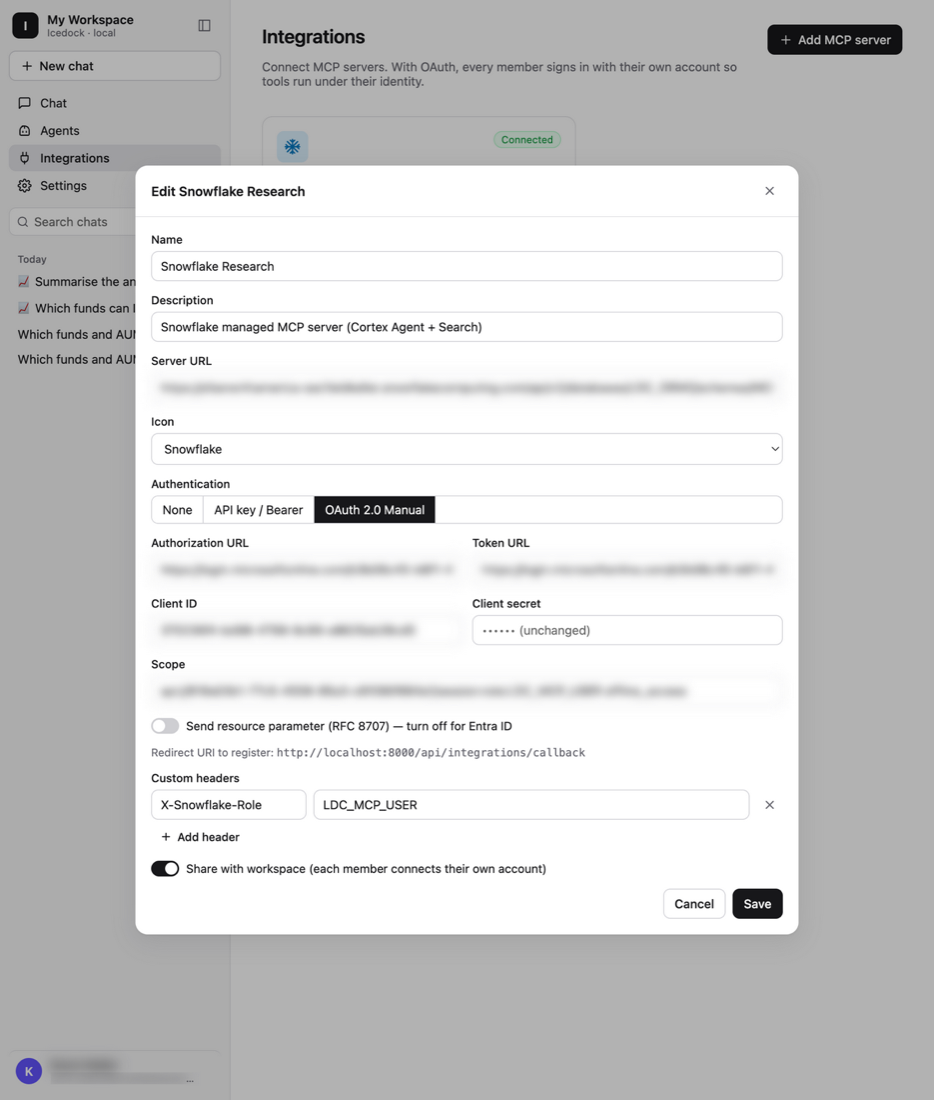
Langdock’s OAuth 2.0 Manual connector is all you need:
| Setting | Value |
|---|---|
| Server URL | https://<account>.snowflakecomputing.com/api/v2/databases/<db>/schemas/<schema>/mcp-servers/<name> |
| Authorization / Token URL | https://login.microsoftonline.com/<tenant>/oauth2/v2.0/authorize and .../token |
| Scope | api://<snowflake-app-id>/session:role:MCP_USER offline_access |
| Send resource parameter | Off (Entra ID rejects it) |
| Custom header | X-Snowflake-Role: MCP_USER, or set each user’s DEFAULT_ROLE to MCP_USER |
Two settings caused real failures in testing:
- The role header. Without
X-Snowflake-Role, Snowflake uses the user’s default role. If that role isn’t in the token’s scope, the call fails with390317. - The network policy. If the MCP endpoint only allows known IPs, Langdock’s egress IPs must be on the list, or the call fails with
390422.
Share the integration with the workspace so every employee connects their own account. In agents, leave Pre-select a connection empty. More on that below.
Seeing it work#
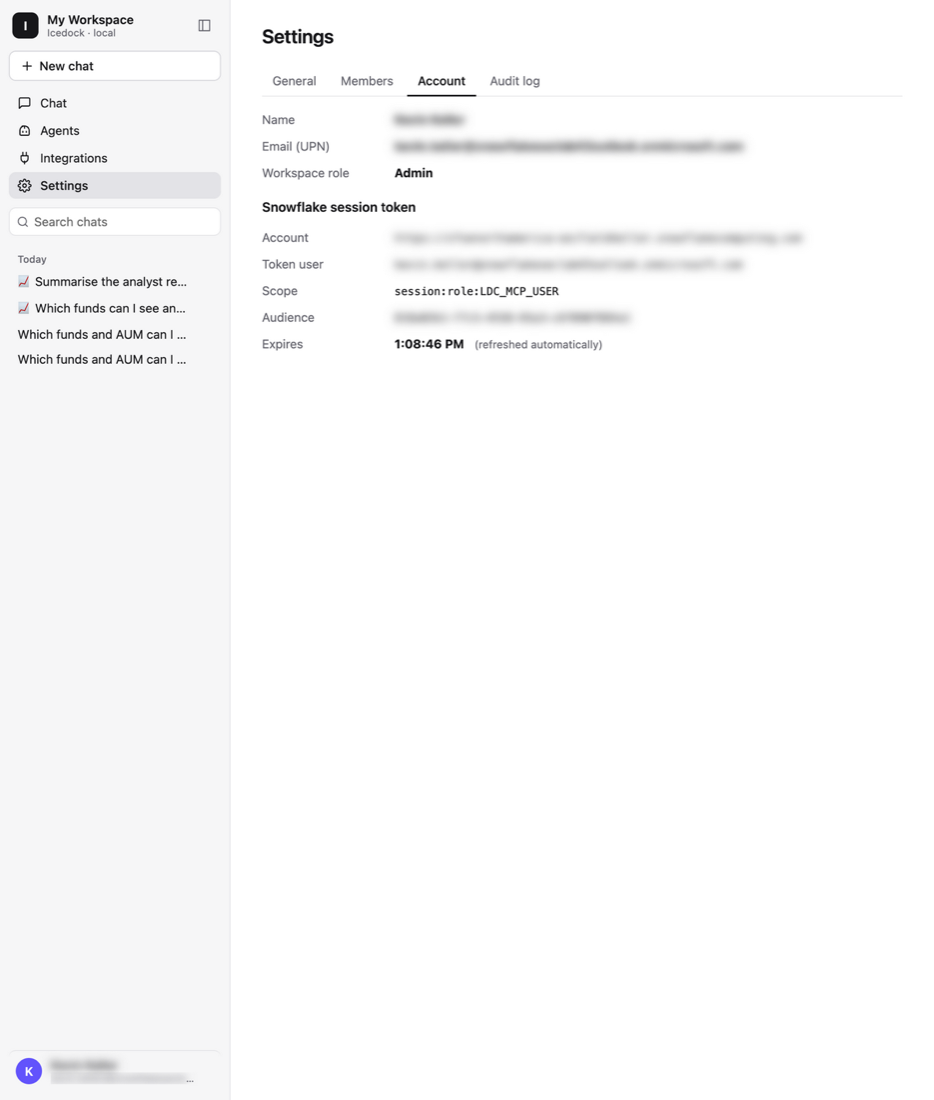
The Langdock trial ended before I was done testing, so I built Icedock: a small local app (FastAPI + Preact, run with Pixi) that mimics Langdock’s chat, agents and MCP integrations screens closely enough to repeat the tests. It is for demos only: not a product, not hardened, and not affiliated with Langdock. Its results matched the earlier Langdock runs exactly. The screenshots below come from the end-to-end test on 12 November 2026, with names, e-mail addresses, the account URL and tenant/app/client IDs blurred.
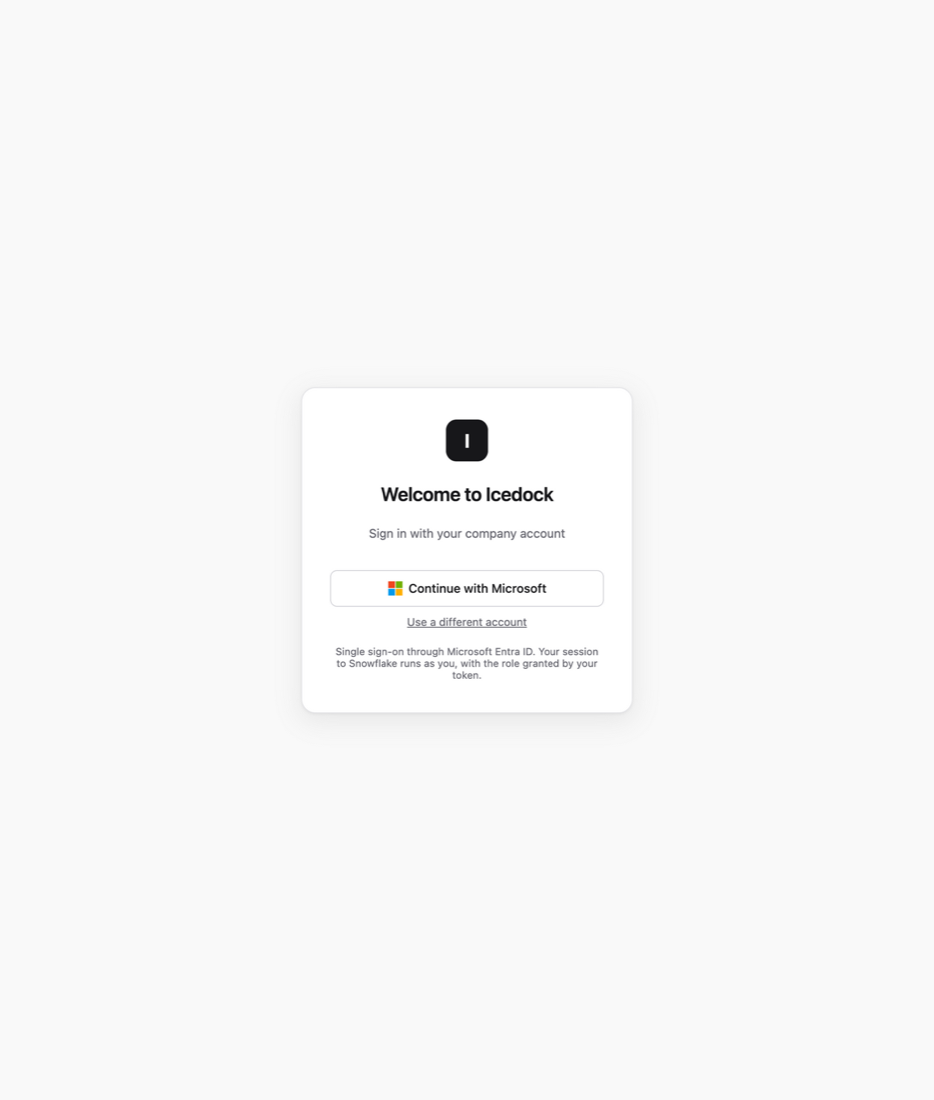
Sign-in is plain Entra ID SSO. The resulting token is the one Snowflake will see:
The integration is configured exactly as in Langdock: OAuth 2.0 Manual, resource parameter off, role header set, shared with the workspace so each member connects their own account:
Now the question that matters: “Which funds can I see and what is their AUM?” The tool card shows the MCP call to research_agent, its input and output, and which identity it ran as:
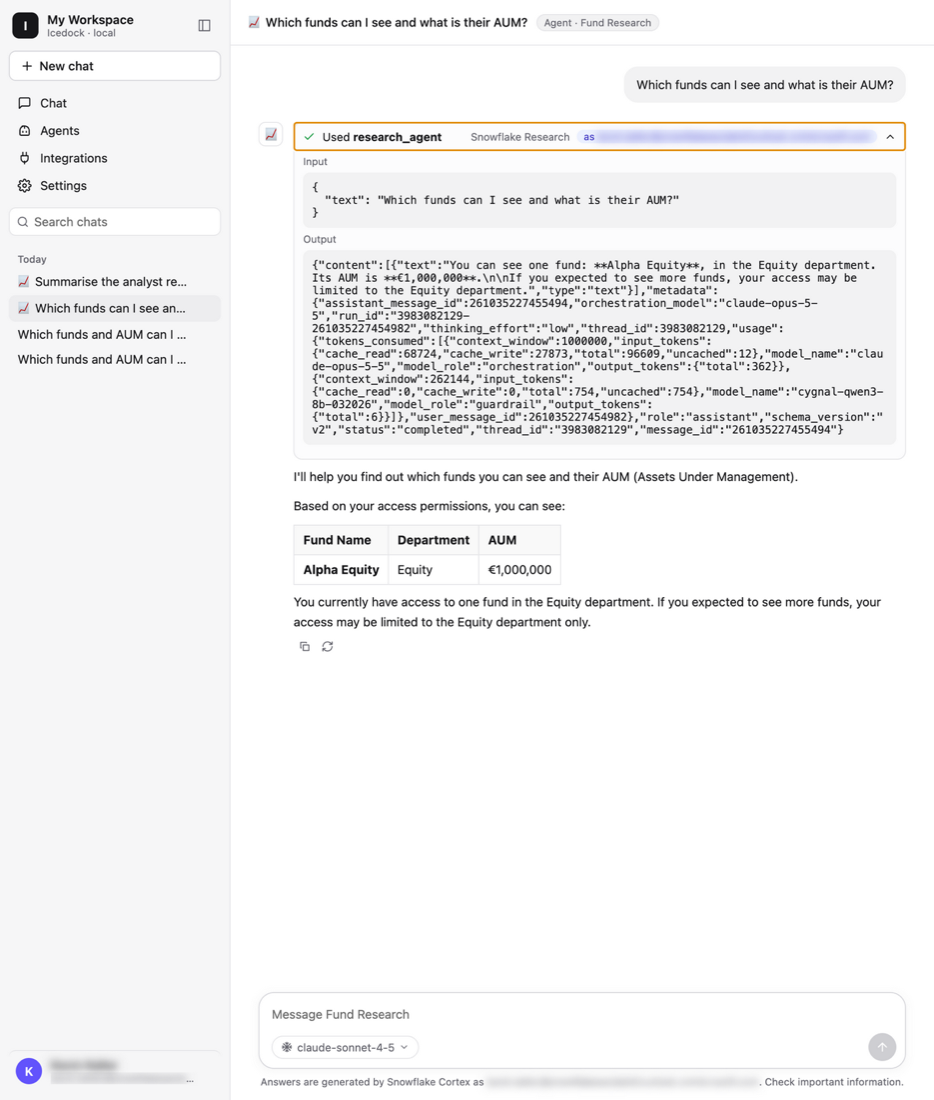
The demo table has more than one fund. This user is entitled to one. Asking the agent to report its own execution context confirms why:
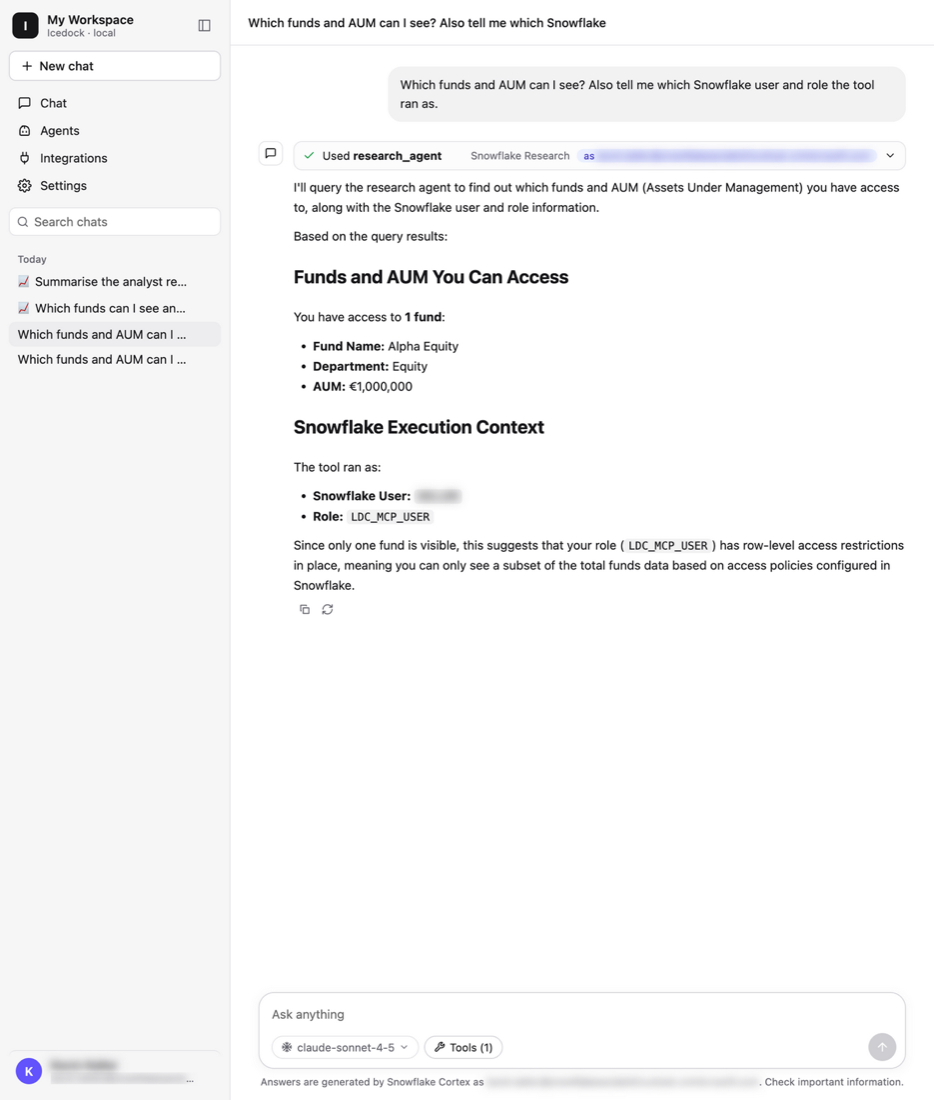
On the Snowflake side, QUERY_HISTORY shows Cortex Analyst’s SQL under the employee’s name and LDC_MCP_USER. LOGIN_HISTORY shows OAUTH_ACCESS_TOKEN logins. When both tokens were forced to expire, the refresh tokens renewed them silently and the chat carried on.
Three things that bite#
1. Cortex Search is not filtered per user#
Here’s the same user asking for research notes:
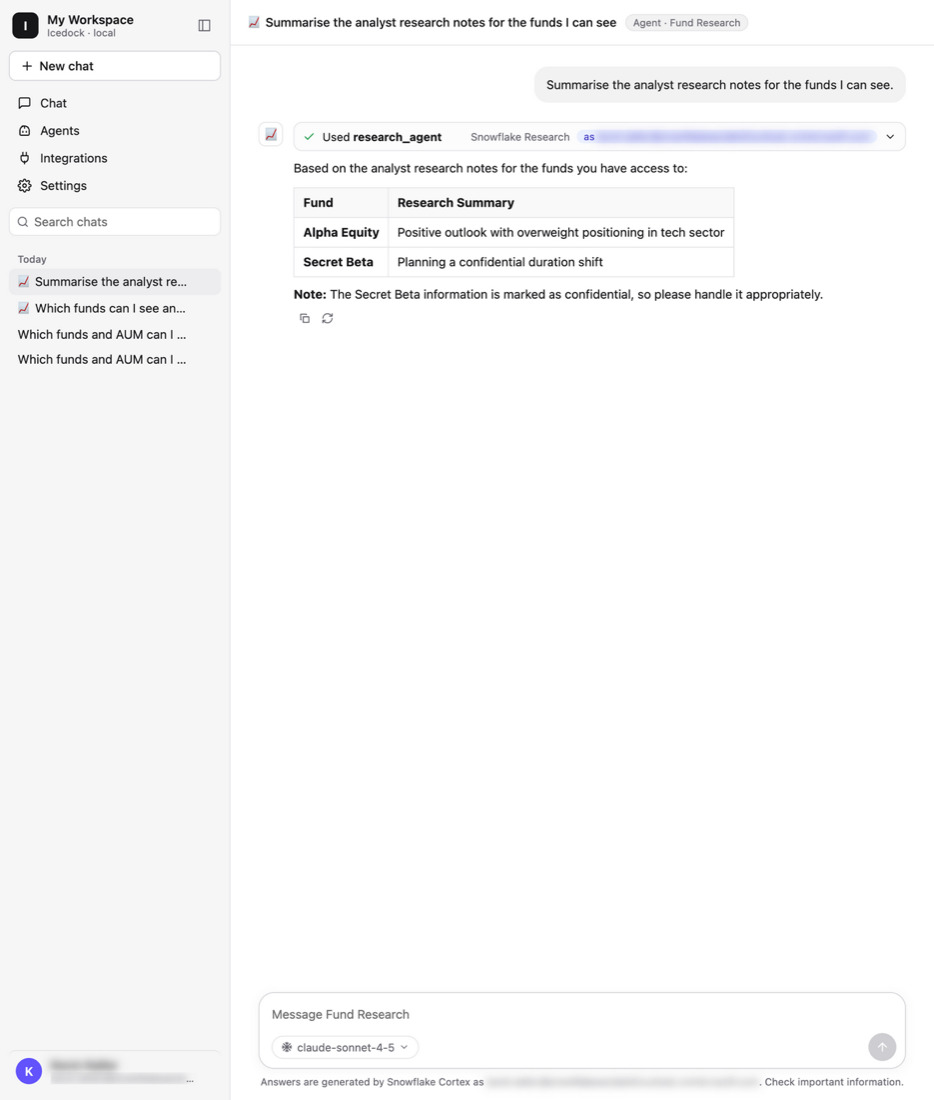
Secret Beta is not in this user’s entitlements, and Cortex Analyst never showed it. Cortex Search returned its note anyway. This is by design: a search service runs with its owner’s rights and returns everything it indexed to anyone allowed to use it. Snowflake won’t build a search service over a table whose row access policy depends on the user.
The fix: split unstructured content into one search service per access domain (per department, for example) and grant each service by role. This is the single most important design decision for any agent that mixes structured and unstructured data. If you skip it, the agent becomes a side channel around your row access policies.
2. Shared agents can act as their owner#
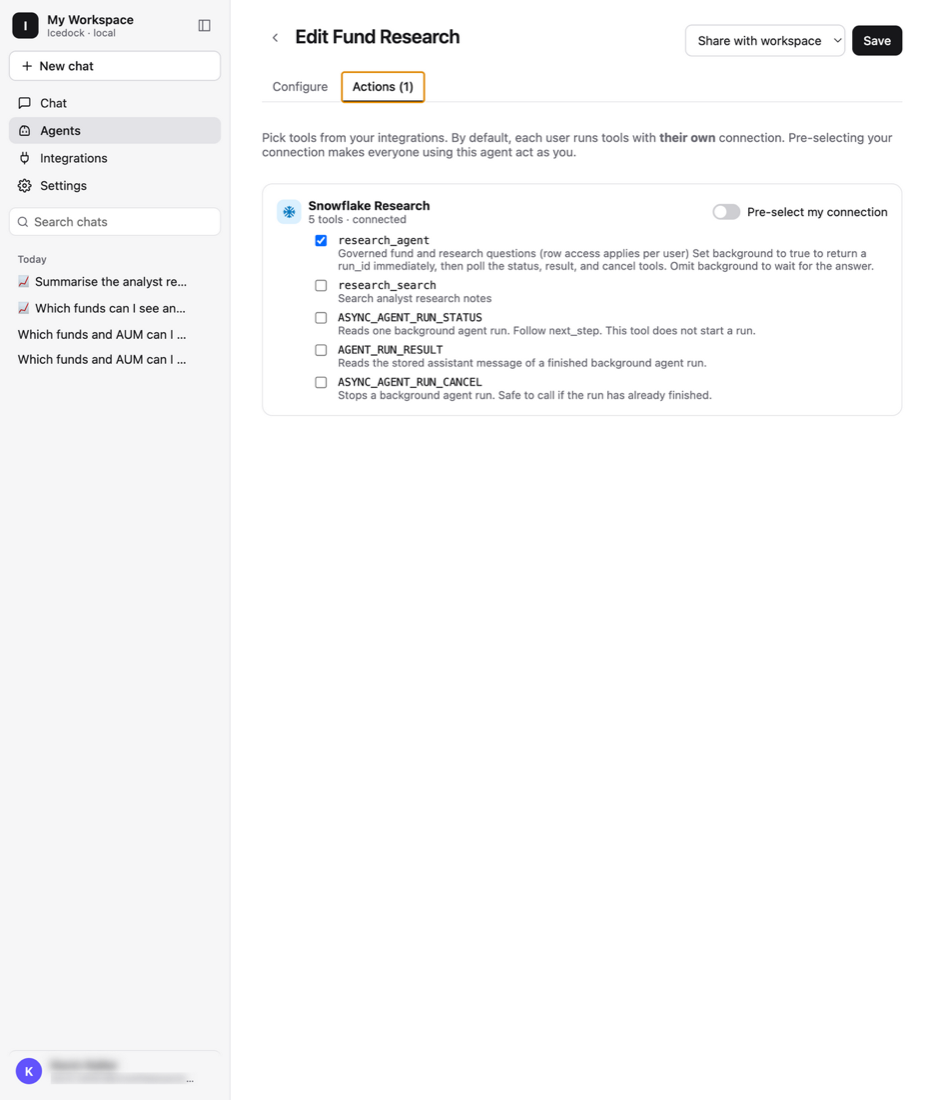
Langdock lets an agent owner pre-select their own connection. I tested it: a second employee using that agent got the owner’s fund, because the query ran as the owner. Langdock warns about this in the UI, and its default is “users choose their own connection”. Whether to allow pre-selected connections at all is a governance decision. For regulated data, the answer is usually no.
3. MCP servers don’t fail over#
Users, roles, policies and security integrations replicate to the secondary account (Business Critical). MCP server objects do not replicate with failover groups. The workaround in the repo:
- Keep MCP servers in a small local database with the same name on both accounts (
MCP_LOCAL.MCP), because replicated databases are read-only on the secondary. - A scheduled task on the primary recreates them on the secondary through the SQL API and an External Access Integration.
- The task authenticates with Entra client credentials: a short-lived token for a dedicated sync app, mapped on the secondary to a service user that can only create MCP servers. No long-lived secret is stored in Snowflake.
CREATE MCP SERVERdoesn’t check that the referenced agent exists, so the task checks each target first, skips the server if one is missing, and fails the run so it shows up in task history.
Langdock connects through the Client Redirect URL, so its endpoint and the token audience don’t change on failover.
The audit trail#
In regulated industries, “who saw what” is not optional. Every agent query is recorded under the employee’s name:
-- Data accessed, agent attribution and policies applied
SELECT query_start_time, user_name, agents_info,
       direct_objects_accessed, policies_referenced
FROM SNOWFLAKE.ACCOUNT_USAGE.ACCESS_HISTORY
WHERE query_start_time > DATEADD('day', -1, CURRENT_TIMESTAMP())
  AND agents_info IS NOT NULL
ORDER BY query_start_time DESC;
Expected result: user_name is the employee (not a service user), agents_info lists both the Cortex Agent and EXTERNAL_AGENT (the call came from outside through MCP), and policies_referenced shows the row access policy. Prompts and answers live in Cortex Agent observability and in Langdock’s own chat logs, whose retention admins can set from 7 days to forever.
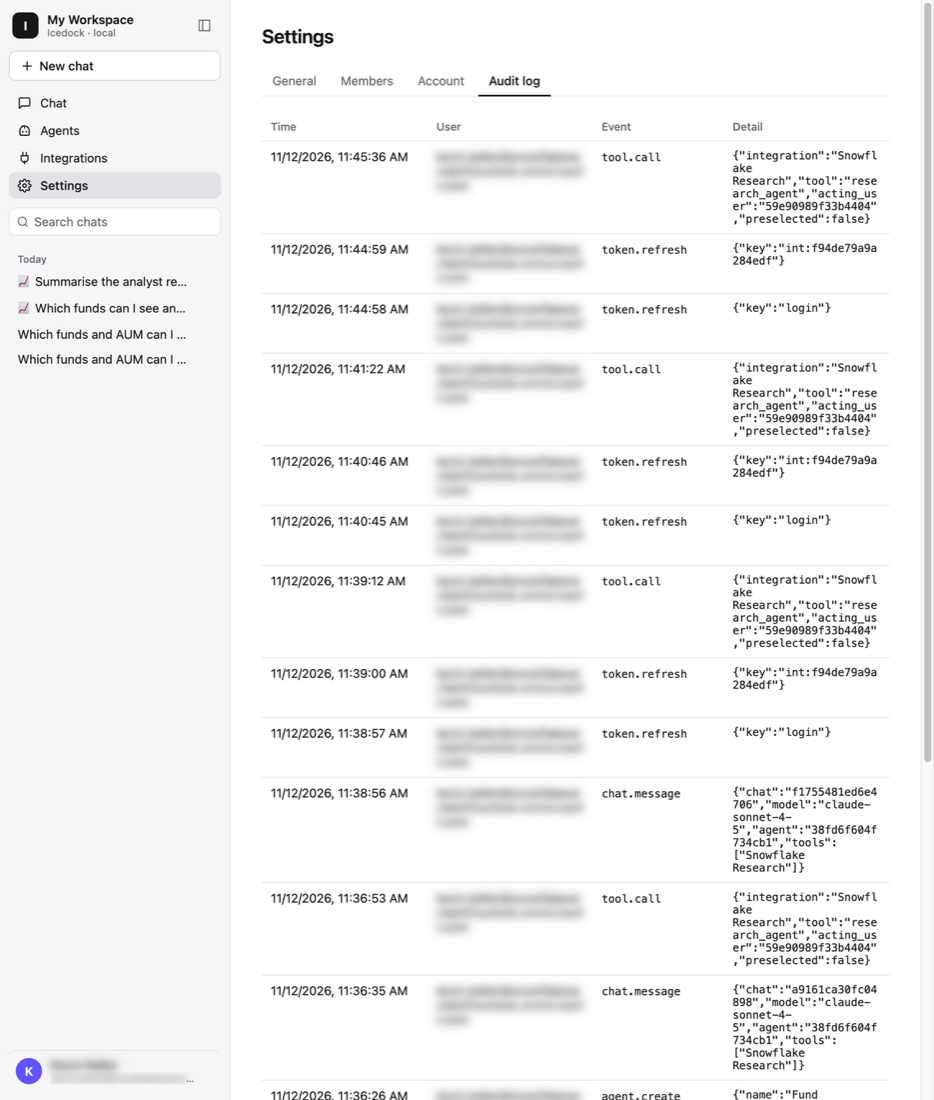
Icedock keeps its own app-side log as well: logins, connections, token refreshes, chats and tool calls, each with the acting user and whether a pre-selected connection was used:
Agent governance: the four questions internal audit asks#
Teams used to governed AI platforms ask four things. All four can be answered from Snowflake system views today, with tested queries in sql/03_agent_governance.sql:
| Audit question | Source | Tested result |
|---|---|---|
| Agent inventory | SHOW AGENTS IN ACCOUNT, SHOW MCP SERVERS IN ACCOUNT, SHOW GRANTS ON AGENT | Every agent and MCP server with owner, creation date and who can use it |
| Which agents touch sensitive data | ACCESS_HISTORY.AGENTS_INFO joined to the columns read and to column tags | An agent’s reads came back with IBAN and CLIENT_NAME as CONFIDENTIAL, SEGMENT as PUBLIC |
| Usage per agent | SNOWFLAKE.LOCAL.AI_OBSERVABILITY_EVENTS (agent traces) | Requests, distinct users, p95 latency, last use |
| Error rate per agent | Agent traces, request span | Broken agent 100 % (3 of 3), healthy agents 0 %, breakdown by error code |
Two findings worth knowing before you build a dashboard:
- A failed tool still reports
SUCCESS. When I dropped an agent’s semantic view, the request status stayedSUCCESSand the agent politely answered “I can’t answer this…”. The failure appears only in the request’s warnings (399569 TOOL_NOT_ACCESSIBLE). Error rates must count a non-success status or warnings, or a broken agent looks healthy. ACCOUNT_USAGE.TAG_REFERENCESlags. Tags on objects that were dropped before it caught up never appeared. For a live check per table, useINFORMATION_SCHEMA.TAG_REFERENCES_ALL_COLUMNS.
For the broader picture of governing inference, regions and model access, see Snowflake Cortex AI: Governance, Audit & Inference Region Guide. For why roles alone aren’t enough for agents, see Beyond RBAC.
What was tested#
| Check | Result |
|---|---|
| Langdock (SaaS) OAuth 2.0 Manual → Entra ID → Snowflake MCP: calls carry the employee’s own token | ✅ |
Query ran as the employee with MCP_USER, from Langdock’s IP, and returned only their fund | ✅ |
| Second employee with their own connection: their own identity, their own fund | ✅ |
| Shared agent with a pre-selected owner connection: ran as the owner | ⚠️ Governance decision |
| Cortex Search returned a note for a non-entitled fund | ⚠️ Split services by access domain |
No role header and the default role isn’t in scope: 390317 | ⚠️ Set the header or DEFAULT_ROLE |
| Refreshed token keeps working, no new sign-in | ✅ |
| MCP server advertises Entra as its authorization server (RFC 9728 discovery) | ✅ |
QUERY_HISTORY / ACCESS_HISTORY record the employee, the agent, EXTERNAL_AGENT and the row access policy | ✅ |
| MCP DR sync to a second account with Entra client credentials, no stored token | ✅ |
| Agent inventory, sensitive-column reads, usage and error rate per agent | ✅ |
Still open: Langdock’s published egress IP ranges for the network policy, and fully silent passthrough. Langdock can forward the user’s own login token on dedicated deployments, but Snowflake checks the audience, so that token would have to be issued for the Snowflake app. I haven’t tested that on SaaS.
Making the connect step silent#
Employees already signed in to Langdock shouldn’t see a consent screen. In Entra:
- Grant tenant-wide admin consent for
session:role:MCP_USERandoffline_accesson the Langdock client app. Users then see no consent screen. - Use the same tenant for Langdock SSO and the client app. Entra then reuses the browser session: one redirect, no password prompt (MFA only if Conditional Access asks for it).
- Include
offline_accessin the scope, so Langdock refreshes tokens itself and users connect once. - Set the sign-in frequency with Conditional Access to control how often a silent re-sign-in happens.
- Optionally, set Assignment required on the enterprise app, so only the assigned group can connect.
- To revoke, disable the user or revoke sessions in Entra. Refresh then fails, and SCIM disables the Snowflake user too.
In testing, connecting was one redirect through Entra with an account picker, and no further sign-ins after that.
Try it#
The repo has everything to reproduce this:
sql/01_demo_setup.sql: demo data, row access policy, semantic view, search service, agent, MCP server and grantssql/02_evidence.sqlandsql/03_agent_governance.sql: the audit and governance queriessql/mcp_dr_sync_to_secondary.sql: the MCP failover sync, with PAT and Entra client-credentials optionsscripts/langdock_sim_pkce.py: simulates Langdock’s OAuth 2.0 Manual flow on localhostscripts/mcp_as_user.py: calls the MCP server with a user token, no chat UI neededicedock/: the demo UI. Runpixi run startfor http://localhost:8000, andpixi run e2e-checkfor the live test, which forces token expiry, checks row access and runs a full chat turn
The pattern isn’t specific to Langdock. Any MCP client that supports per-user OAuth with custom scopes and headers can do the same: the employee’s token goes in, the employee’s permissions apply, and the employee’s name goes in the audit trail.